
Introducing the AI-OS Software Center

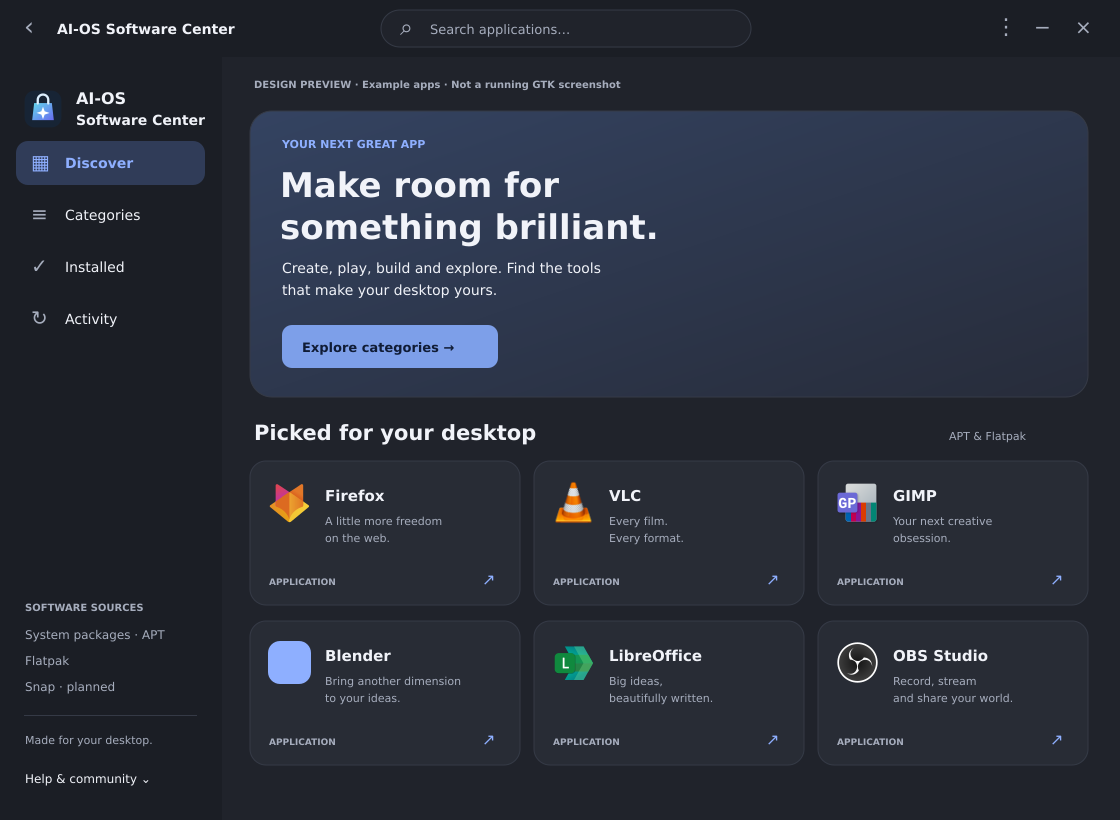
A new home for your applications — APT, Flatpak and Snap together
AI-OS Desktop • Build 1.0.0.120 • 18 November 2026
Hello everyone,
We have been working on a part of AI-OS that you use whenever you want to add something new to your desktop: finding, installing and managing applications.
Build 1.0.0.120 introduces the AI-OS Software Center, our redesigned replacement for the Mint Software Manager. It brings a refreshed interface, a more useful layout and three application ecosystems into one place: native APT packages, Flatpak applications including Flathub, and Snap applications.
This is more than a name and icon change. We have reworked how the application presents software, how it handles wider windows, how it discovers installed applications and how it offers different package sources for the same application.
Build status: the complete build 120 package set has been compiled, with 45 DEBs, and has passed package ownership and critical-payload validation. Light and dark interface fixtures also passed. This is the first integrated build; installation and real package-operation testing in the VMware environment remain the next acceptance step. A completed build does not mean every application, repository or hardware configuration has been tested. Download availability will be announced through the normal release channels.
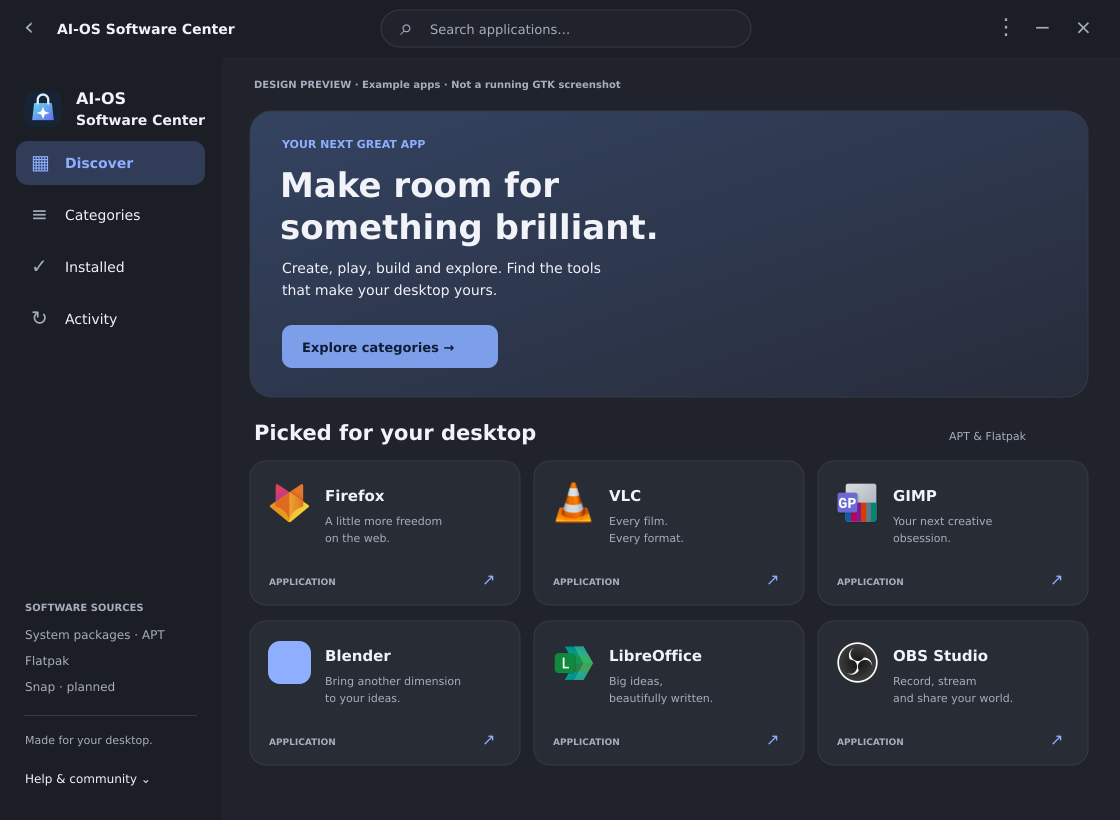
A new look that belongs on AI-OS
The Software Center now has its own AI-OS branding and a cleaner layout built around four main areas:
- Discover: a starting point for browsing featured applications and finding something useful for your desktop.
- Categories: browse software by purpose instead of needing to know its exact package name.
- Installed: see installed applications recognized by the supported package backends.
- Activity: follow package operations, including Snap daemon changes and their status.
Application cards bring together the name, icon, description and source information where available. Application details provide a place to review the selected package before starting an operation. Descriptions, screenshots and other metadata depend on what the relevant repository or publisher supplies; some entries will be more complete than others.
The interface uses the desktop's GTK theme. Both light and dark Adwaita fixtures were checked during the build process; additional themes and display-scaling combinations still benefit from member testing.
Maximizing the window now gives you more applications
One of the early issues was that application boxes became excessively wide when the window was maximized. That has been addressed.
Cards keep a consistent width, and the grid adds more columns as the available space increases. A larger window is used to show more applications across the screen. Smaller windows can fall back to fewer columns, keeping the layout useful at different sizes.
We also corrected the navigation issue that could repeatedly trigger page changes and send application details back to the home page. Sidebar selection and page changes are now coordinated so programmatic highlighting does not accidentally restart navigation.
Three package ecosystems, one Software Center
A package source tells you where the selected application build comes from and which package system manages it. The Software Center brings these choices into a shared interface, while keeping their identities and installation mechanisms distinct.
Source shownWhere the software comes fromWhat manages itSystem / APTThe native package repositories configured for your AI-OS installationAPT and the distribution's native package toolsFlatpak / FlathubConfigured Flatpak remotes, including Flathub when enabledFlatpakSnapThe Snap store accessed through the local snapd servicesnapd
These are the supported source families. They do not mean that every possible Linux repository has been added to your system, or that every application exists in all three formats.
1. Native packages: your system's APT repositories
APT is the package system used for the native Debian-format packages on the supported Debian and Ubuntu bases.
This source uses the repositories already configured for your installation. Depending on the edition and its configuration, that can include the underlying distribution's repositories, distribution update/security repositories and enabled AI-OS/MakuluLinux or other compatible repositories.
The Software Center does not turn a Debian installation into an Ubuntu repository client or automatically enable arbitrary third-party repositories. The native package versions available to you depend on your actual base, enabled sources, architecture and APT package selection rules.
Native packages generally use the system's shared libraries and integrate with the distribution's package-management workflow. That makes this source particularly relevant when you want the version maintained for your underlying operating system.
A useful distinction: a package being available through APT does not necessarily mean that the application's original developer publishes it directly. It may be maintained by the distribution or another repository maintainer. The repository you enable matters.
The Software Center is an application catalogue. Its Installed page is not intended to replace a complete technical listing of every installed kernel component, library, dependency and background service.
2. Flatpak: including Flathub and configured remotes
Flatpak is an application packaging system. Flathub is a repository that distributes applications using that system. They are related, but they are not interchangeable names.
The Software Center retains Flatpak support and identifies Flathub as a source when an application comes from that configured remote. Other configured Flatpak remotes can also supply software; their availability depends on your installation.
Flatpak applications use runtimes and a sandbox permission model. This allows applications to be distributed with an environment that is less tightly tied to the underlying distribution's library versions. Permissions and integration can differ between individual applications.
For users, this can provide another route to desktop applications when the native repositories do not offer the desired version or package. It does not guarantee that the Flatpak build is newer, better maintained or published by the original developer in every case.
Some Flatpak downloads also require a runtime. Runtimes can be shared between applications, so the first application using a particular runtime may need a larger download than a later application using the same one.
The important point is that you can review the Flatpak source alongside the other available application sources instead of having to treat it as a separate software-management experience.
3. Snap: integrated into the main catalogue
Snap support is now implemented, using the local snapd service to communicate with the Snap store and manage installed snaps.
AI-OS already includes snapd, but the Software Center still checks whether the service is available and responding. This matters on customized installations or systems where the service has been disabled or removed. Adding Snap support does not silently reinstall or enable a missing service.
Snap applications appear in the same overall browsing and application-detail workflow as the other sources. There is no separate Snap Store application page that you must use instead of the main catalogue.
The integration includes:
- Searching for Snap applications and opening their details.
- Recognizing installed Snap applications.
- Installing, removing and refreshing snaps.
- Choosing available Snap channels.
- Showing operation progress and tracking completion through snapd.
- Showing daemon activity and requesting cancellation where supported.
- Requesting system authorization when required.
- Repairing supported Snap application menu shortcuts.
Channel choices depend on what a publisher makes available. Snap channels can distinguish stable releases from candidate, beta or edge builds, and some applications offer separate version tracks. A testing channel may change more frequently and should be selected deliberately.
Snap also has different confinement models. Strict confinement restricts access through Snap's security mechanisms and interfaces. Classic confinement allows broader access to the host environment; the Software Center requires an explicit confirmation for that choice. This first integration does not include a general interface-permission editor or private-store/account sign-in management.
Automatic Snap refreshes remain governed by snapd. The Software Center does not replace snapd's background update policy.
Choose the package source on the application page
Where the Software Center recognizes matching builds of an application, the details page offers the available sources through a shared source selector.
For example, a recognized application may have a native system package, a Flatpak build and a Snap build. You can inspect the source you want and perform the operation for that specific package.
Matching is deliberately careful. We use known package/application identities and supported store metadata. Two unrelated applications with a similar display name should not be combined merely because their titles look alike.
This means some applications will have multiple source choices, while others remain separate source-labelled entries. Matching is not yet universal across every application in every store. Search results, repository configuration and available catalogue data also affect which alternatives can be shown.
Changing the source selector does not convert an installed application into another package format. APT, Flatpak and Snap installations remain distinct. Installing another format can leave you with two copies of the same application, potentially with different settings, permissions and menu entries. Check the selected source before installing or removing software.
Source filters also let you narrow browsing to the package ecosystem you want to use.
Installed applications: based on actual package state
We addressed the problem where Installed could appear empty even though the system already had applications installed.
Installed detection now uses the relevant package-manager state rather than depending on the Software Center's own installation history or an installer log. Applications recognized by the catalogue can therefore appear even when they were installed before this Software Center or through another supported package-management tool.
The view includes supported native applications, installed Flatpak applications and Snap applications. Underlying Snap base/runtime components are excluded from application cards so the view remains focused on apps.
The selected source matters here too: an installed APT build does not cause an uninstalled Snap or Flatpak alternative to be marked installed.
Snap menu shortcuts: extra attention to a familiar problem
A Snap application can install successfully but fail to appear in a desktop's application menu when its exported launcher directory is not being picked up correctly.
We have added a managed menu-shortcut repair mechanism for this situation. After a successful Snap operation, and when installed snaps are checked, the Software Center can mirror eligible snapd-exported GUI launchers into the user's standard applications directory.
The repair preserves the exported launcher identity, command, arguments, icon references and translations. It uses the same desktop-entry filenames to help avoid duplicates when the system already discovers the original entries.
It also respects user changes. Existing launchers that the Software Center does not own, and managed launchers that you have edited, are not blindly overwritten or deleted. Untouched managed copies can be updated after refreshes or cleaned up after removal.
Installed Snap details include a Repair menu shortcuts action for manual use.
This is not a promise that every Snap will have a menu entry: a command-line-only package may not publish a GUI launcher at all. Publisher-hidden launchers are not forced into the menu. Menu repair problems are reported separately from package-installation success, so a shortcut warning does not incorrectly mean the application failed to install.
Replacing Mint Software Manager
The new package is named ai-os-software-center and is integrated into the AI-OS desktop package set. It explicitly replaces mintinstall.
Compatibility launchers are retained for existing Mintinstall commands, older shortcuts and supported Flatpak file associations. Fresh-profile panel defaults use the AI-OS Software Center launcher, and a shortcut is available through Settings. Existing user pins do not need to be discarded merely because they use the old launcher identity.
For existing installations upgrading from build 119 or earlier, there is an important first-transition detail: the older updater deliberately refuses package removals. Replacing Mintinstall requires that package to be removed as part of the replacement transaction.
Testers using the complete, validated local build 120 package set should install the replacement first, from the directory containing the DEBs:
sudo apt install ./ai-os-software-center_1.0.0.120_all.deb
Review the proposed transaction before accepting it. Replacing mintinstall is expected; unexpected removals of other desktop packages need investigation. Continue with the normal matching desktop upgrade procedure afterward. This command assumes you already have the actual build 120 package file; it is not a download command or an instruction to run before that file is available.
Replacing the software manager does not, by itself, require removing the applications previously installed through it.
Built on Linux Mint's work, adapted for AI-OS
The AI-OS Software Center derives from Linux Mint's Mintinstall and its supporting installer code. We have retained the upstream licensing and attribution while adapting the interface, branding, source integration and packaging for AI-OS.
Build 120 also adds compatibility handling for the APT transaction libraries used across the supported bases, accommodating aptdaemon and aptkit rather than assuming one backend is present everywhere.
The rest of the desktop's recent work is preserved, including build 119's Smooth spring-physics defaults. This release brings the Software Center into that desktop without replacing the existing window-management and effects work.
What we would like members to test
The first integrated build has passed automated checks, light/dark GUI fixtures and package-content verification. Real-world testing is still important, especially for authenticated package operations and desktop menu behavior.
Please report the application name, selected source, AI-OS base and build, and the exact behavior when testing:
- Searching and browsing, including maximizing and restoring the window.
- Opening application details and switching between available sources.
- Installed applications appearing under the correct source.
- APT, Flatpak and Snap installation/removal and authorization cancellation.
- Snap refreshes, channel selection and progress reporting.
- Snap menu entries appearing, launching, refreshing and cleaning up correctly.
- Light/dark themes, smaller screens and display scaling.
This first version does not add AppImage catalogue management, a private Snap-store login workflow or a universal permission editor. Metadata and available software remain dependent on your configured sources and their publishers.
Thank you to our Patreon and Ghost Portal members for supporting AI-OS and helping test the details that make a desktop better to use. The new Software Center gives application management a more consistent home, with native packages, Flatpak and Snap available through one AI-OS interface.
Package-system background
These official references explain the underlying technologies; AI-OS-specific behavior described above comes from the build 120 implementation and validation records.